6.s3
• Amazon S3 allows people to store objects (files) in “buckets” (directories)
• Buckets must have a globally unique name (across all regions all accounts)
S3 looks like a global service but buckets are created in a region
Naming convention
- No uppercase
- No underscore
- 3-63 characters long
- Not an IP
- Must start with lowercase letter or number
S3 Use cases
- Backup and storage
- Disaster Recovery
- Archive
- Hybrid Cloud storage
- Application hosting
- Media hosting
- Data lakes & big data analytics
- Software delivery
- Static website
Amazon S3 Overview – Objects
• Objects (files) have a Key
• The key is the FULL path:
• s3://my-bucket/my_file.txt
• s3://my-bucket/my_folder1/another_folder/my_file.txt
• The key is composed of prefix + object name
• s3://my-bucket/my_folder1/another_folder/my_file.txt
• There’s no concept of “directories” within buckets
(although the UI will trick you to think otherwise)
• Just keys with very long names that contain slashes (“/”)
- Object values are the content of the body:
- Max Object Size is 5TB (5000GB)
- If uploading more than 5GB, must use “multi-part upload”
S3 Security
- User based
- IAM policies – which API calls should be allowed for a specific user from IAM console
- Resource Based
- Bucket Policies – bucket wide rules from the S3 console – allows cross account
- Object Access Control List (ACL) – finer grain
- Bucket Access Control List (ACL) – less common
- Note: an IAM principal can access an S3 object if the user IAM permissions allow it OR the resource policy ALLOWS it AND there’s no explicit DENY
- • Encryption: encrypt objects in Amazon S3 using encryption keys
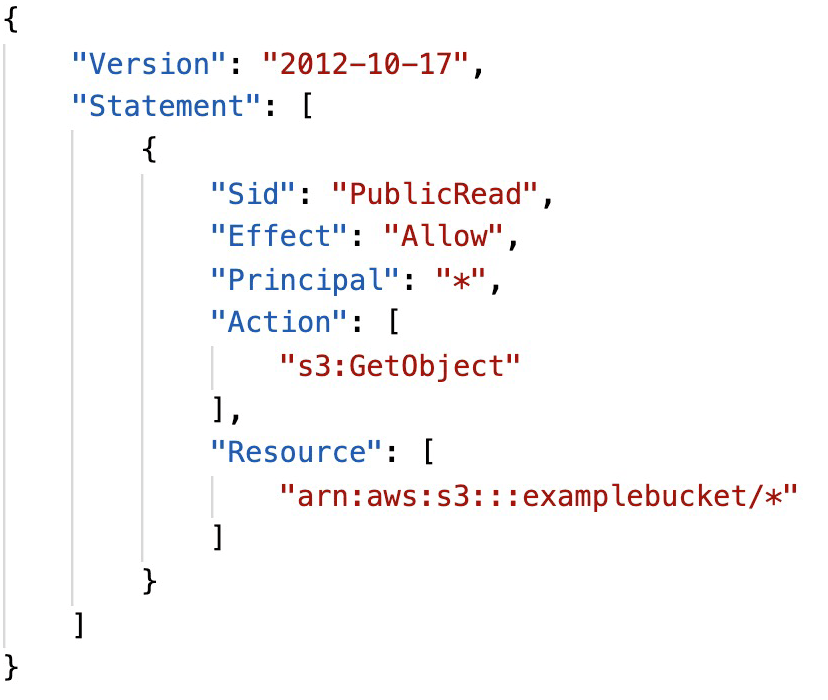
S3 Bucket Policies
- JSON based policies
- Resources: buckets and objects
- Actions: Set of API to Allow or Deny
- Effect: Allow / Deny
- Principal: The account or user to apply the policy to
Use S3 bucket for policy to:
- Grant public access to the bucket
- Force objects to be encrypted at upload
- Grant access to another account (Cross Account)
S3 Websites
• S3 can host static websites and have them accessible on the www
The website URL will be:
.s3-website-.amazonaws.com
If you get a 403 (Forbidden) error, make sure the bucket policy allows
public reads!
Amazon S3 – Versioning
- You can version your files in Amazon S3
- It is enabled at the bucket level
- Same key overwrite will increment the “version”: 1, 2, 3….
- It is best practice to version your buckets
- Protect against unintended deletes (ability to restore a version)
- Easy roll back to previous version
Notes:
• Any file that is not versioned prior to enabling versioning will have version “null”
• Suspending versioning does not delete the previous versions
S3 Access Logs
For audit purpose, you may want to log all access to S3 buckets
S3 Replication (CRR & SRR)
• Must enable versioning in source and destination
• Cross Region Replication (CRR)
• Same Region Replication (SRR)
• Buckets can be in different accounts
• Copying is asynchronous
• Must give proper IAM permissions to S3
• CRR – Use cases: compliance, lower latency access,
replication across accounts
• SRR – Use cases: log aggregation, live replication
between production and test accounts
S3 Storage Classes
- • Amazon S3 Standard – General Purpose
- • Amazon S3 Standard-Infrequent Access (IA)
- • Amazon S3 One Zone-Infrequent Access
- • Amazon S3 Intelligent Tiering
- • Amazon Glacier
- • Amazon Glacier Deep Archive
- • Amazon S3 Reduced Redundancy Storage (deprecated – omitted)
S3 Durability and Availability
- • Durability:
- High durability (99.999999999%, 11 9’s) of objects across multiple AZ
- If you store 10,000,000 objects with Amazon S3, you can on average expect to incur a loss of a single object once every 10,000 years
- Same for all storage classes
- Availability:
- Measures how readily available a service is
- S3 standard has 99.99% availability, which means it will not be available 53 minutes a year
- Varies depending on storage class
S3 Standard – General Purposes
• 99.99% Availability
• Used for frequently accessed data
• Low latency and high throughput
• Sustain 2 concurrent facility failures
• Use Cases: Big Data analytics, mobile & gaming applications, content
distribution…
S3 Standard – Infrequent Access (IA)
• Suitable for data that is less frequently accessed, but requires rapid
access when needed
• 99.9% Availability
• Lower cost compared to Amazon S3 Standard, but retrieval fee
• Sustain 2 concurrent facility failures
• Use Cases: As a data store for disaster recovery, backups…
S3 Intelligent- Tiering
- 99.9% Availability
- Same low latency and high throughput performance of S3 Standard
- Cost-optimized by automatically moving objects between two access tiers based on changing access patterns:
- Frequent access
- Infrequent access
- Resilient against events that impact an entire Availability Zone
S3 One Zone – Infrequent Access (IA)
Same as IA but data is stored in a single AZ
• 99.5% Availability
• Low latency and high throughput performance
• Lower cost compared to S3-IA (by 20%)
• Use Cases: Storing secondary backup copies of on-premise data, or
storing data you can recreate
Amazon Glacier & Glacier Deep Archive
- Low cost object storage (in GB/month) meant for archiving / backup
- Data is retained for the longer term (years)
- Various retrieval options of time + fees for retrieval:
- Amazon Glacier – cheap:
- Expedited (1 to 5 minutes)
- Standard (3 to 5 hours)
- Bulk (5 to 12 hours)
- Amazon Glacier Deep Archive – cheapest:
- Standard (12 hours)
- Bulk (48 hours)

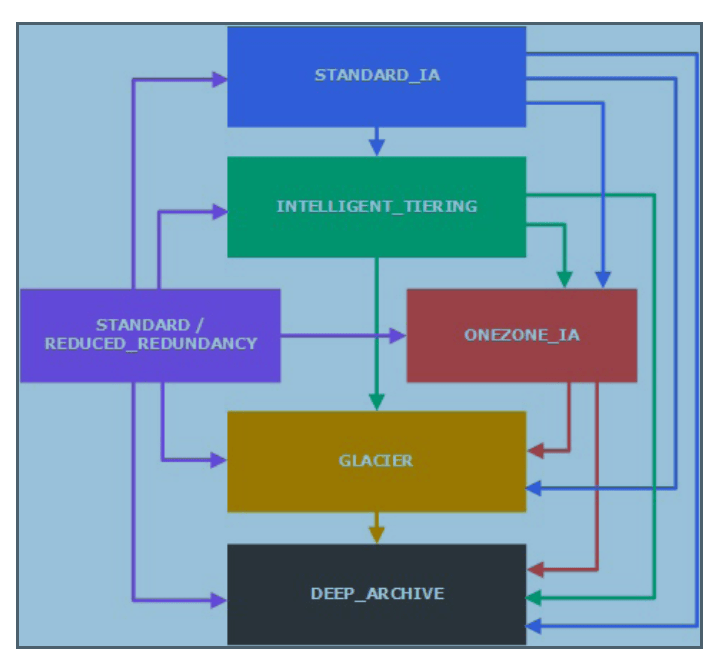
S3 – Moving between storage classes
• You can transition objects between storage classes
• For infrequently accessed object, move them to STANDARD_IA
• For archive objects you don’t need in real-time, GLACIER or DEEP_ARCHIVE
• Moving objects can be automated using a life-cycle configuration
S3 Object Lock & Glacier Vault Lock
- S3 Object Lock
- Adopt a WORM (Write Once Read Many) model
- Block an object version deletion for a specified amount of time
Glacier Vault Lock
• Adopt a WORM (Write Once Read Many) model
• Lock the policy for future edits (can no longer be changed)
• Helpful for compliance and data retention
AWS Snow Family
Highly-secure, portable devices to collect and process data at the edge,
and migrate data into and out of AWS.

AWS Snow Family: offline devices to perform data migrations
Migration Solution-
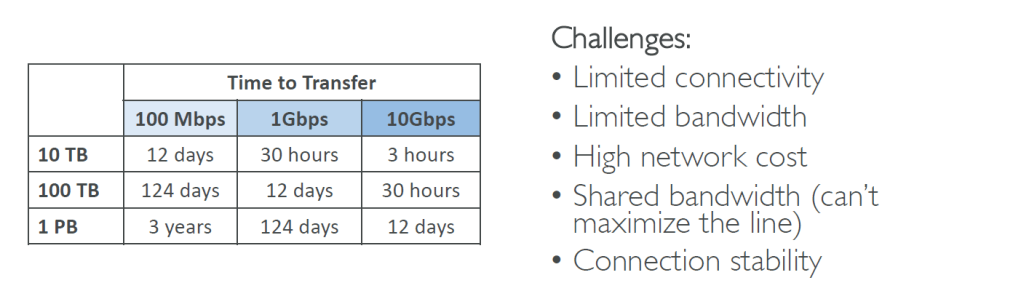
If it takes more than a week to transfer over the network, use Snowball devices!
Snowball Edge (for data transfers)
• Physical data transport solution: move TBs or PBs of data in or out
of AWS
- Alternative to moving data over the network (and paying network fees) Pay per data transfer job
- Provide block storage and Amazon S3-compatible object storage
- Snowball Edge Storage Optimized
- 80 TB of HDD capacity for block volume and S3 compatible object storage
- Snowball Edge Compute Optimized
- 42 TB of HDD capacity for block volume and S3 compatible object storage
- Use cases: large data cloud migrations, DC decommission, disaster recovery
AWS Snowcone (Single digit TBs of Data & since being small device can withstand harsh env)
• Small, portable computing, anywhere, rugged & secure, withstands harsh environments
• Light (4.5 pounds, 2.1 kg)
• Device used for edge computing, storage, and data transfer
• 8 TBs of usable storage
• Use Snowcone where Snowball does not fit (space-constrained environment)
• Must provide your own battery / cables
• Can be sent back to AWS offline, or connect it to internet and use AWS DataSync to send data
AWS Snowmobile (3 digit TBs of storage or PBs)
- Transfer exabytes of data (1 EB = 1,000 PB = 1,000,000 TBs)
- Each Snowmobile has 100 PB of capacity (use multiple in parallel)
- High security: temperature controlled, GPS, 24/7 video surveillance
- Better than Snowball if you transfer more than 10 PB
AWS Snowball – AWS Snowball is a data transport solution that accelerates moving terabytes to petabytes of data into and out of AWS using storage appliances designed to be secure for physical transport. Using Snowball helps to eliminate challenges that can be encountered with large-scale data transfers including high network costs, long transfer times, and security concerns
NOTE:: AWS recommends using Snowmobile when data transfer volume is more than 10 TB. But you can transfer this volume using multiple Snowball devices. Since in this question you don’t have the ‘Snowmobile’ option available, the next best option is ‘Snowball’ is the correct answer for this specific question.
This question is given to understand exam tricks, so will not be confused in the real exam for these kinds of tricky questions
AWS Snow Family for Data Migrations

Snow Family – Usage Process
- Request Snowball devices from the AWS console for delivery
- Install the snowball client / AWS OpsHub on your servers
- Connect the snowball to your servers and copy files using the client
- Ship back the device when you’re done (goes to the right AWS
facility) - Data will be loaded into an S3 bucket
- Snowball is completely wiped
What is Edge Computing?
- Process data while it’s being created on an edge location
- A truck on the road, a ship on the sea, a mining station underground…
- These locations may have
- Limited / no internet access
- Limited / no easy access to computing power
- We setup a Snowball Edge / Snowcone device to do edge computing
- Use cases of Edge Computing:
- Preprocess data
- Machine learning at the edge
- Transcoding media streams
- Eventually (if need be) we can ship back the device to AWS (for transferring data for example
Snow Family – Edge Computing
- Snowcone (smaller)
- 2 CPUs, 4 GB of memory, wired or wireless access
- Snowball Edge – Compute Optimized
- 52 vCPUs, 208 GiB of RAM
- Optional GPU (useful for video processing or machine learning
- Snowball Edge – Storage Optimized
- Up to 40 vCPUs, 80 GiB of RAM
- Object storage clustering available
- All: Can run EC2 Instances & AWS Lambda functions (using AWS IoT Greengrass)
- Long-term deployment options: 1 and 3 years discounted pricing
AWS OpsHub
Historically, to use Snow Family devices, you needed a CLI (Command Line Interface tool)
• Today, you can use AWS OpsHub (a software you install on your computer / laptop) to manage your Snow Family Device
• Unlocking and configuring single or clustered devices
• Transferring files
• Launching and managing instances running on Snow Family Devices
• Monitor device metrics (storage capacity, active instances on your device)
• Launch compatible AWS services on your devices (ex: Amazon EC2 instances, AWS DataSync, Network File System (NFS))
Hybrid Cloud for Storage
S3 is a proprietary storage technology (unlike EFS / NFS), so how do you
expose the S3 data on-premise?
• AWS Storage Gateway!
AWS Storage Gateway
Hybrid storage service to allow on-premises to seamlessly use the AWS Cloud
Types of Storage Gateway:
• File Gateway
• Volume Gateway
• Tape Gateway
Amazon S3 – Summary
- Buckets vs Objects: global unique name, tied to a region
- S3 security: IAM policy, S3 Bucket Policy (public access), S3 Encryption
- S3 Websites: host a static website on Amazon S3
- S3 Versioning: multiple versions for files, prevent accidental deletes
- S3 Access Logs: log requests made within your S3 bucket
- S3 Replication: same-region or cross-region, must enable versioning
- S3 Storage Classes: Standard, IA, 1Z-IA, Intelligent, Glacier, Glacier Deep Archive
- S3 Lifecycle Rules: transition objects between classes
- S3 Glacier Vault Lock / S3 Object Lock: WORM (Write Once Read Many)
- Snow Family: import data onto S3 through a physical device, edge computing
- OpsHub: desktop application to manage Snow Family devices
- Storage Gateway: hybrid solution to extend on-premises storage to S3

 Techglot